![rpic-yoga_flexible_software-logo-color (1).png]](https://hubsupport.rpic.com/hs-fs/hubfs/rpic-yoga_flexible_software-logo-color%20(1).png?height=40&name=rpic-yoga_flexible_software-logo-color%20(1).png)
Profile Setup
Top Right Corner
Clicking on your Avatar brings up your display name, email address and options for you to select from: My Profile, My Tenants, What's New, Support Tickets, and Sign Out.
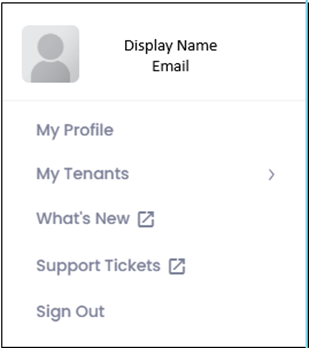
My Profile
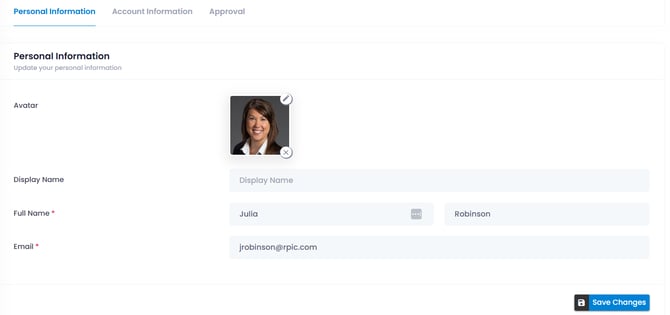
- Whenever you wish to view or change Personal or Account information, navigate to the Personal Settings page by clicking on the My Profile option. From the Personal Information pane you can update your Avatar and Display Name. This display name will follow you around the system, if you go by a different name other than your legal name, this is the spot to update!
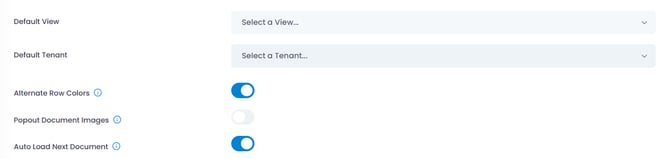
- From the Account Information pane, you have the ability to set a default view (per tenant),
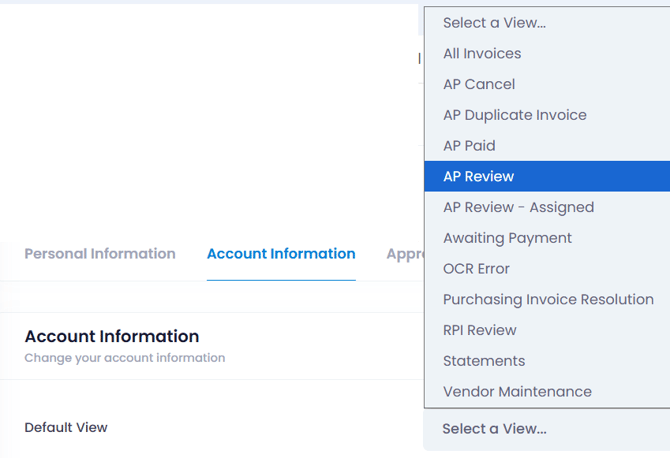
- default tenant (takes place upon each sign on), allow alternating row colors, default the image pop out window (can do manually from record if preferred), and auto load next document on route.
Email Signature
- You can also configure your email signature for personalization when sending emails from Yoga Send Email funcitonality.
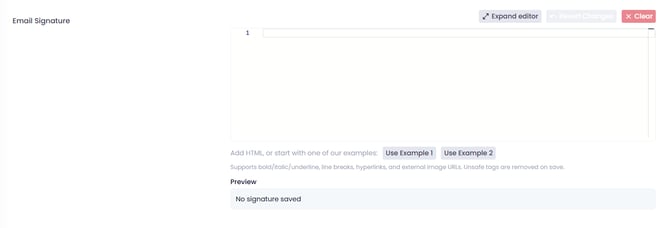
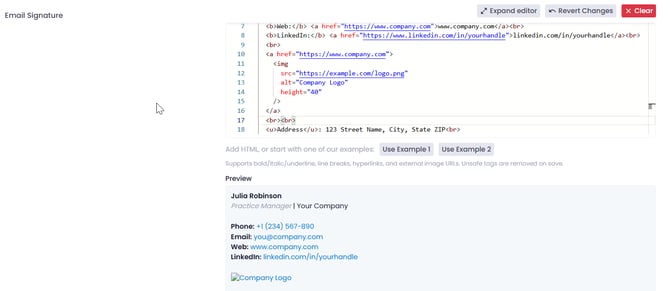
- Choose from the templates provided (Example 1 or Example 2) and populate your personal/business information in the template.
- Update the placeholder text i.e. Name, Company, Phone, Address, etc between the <br> to update.
- You can preview the appearance of your signature in the Preview box below:
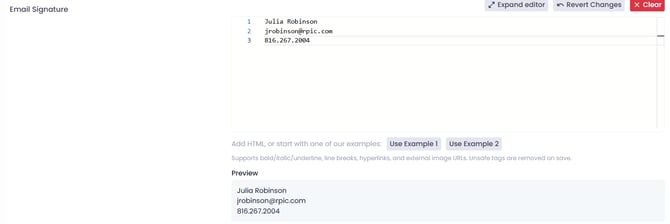
- Alternatively, if you do not want to utilize the templates, you can simply type the information into the editor space i.e. Name, Phone, email and you can preview the layout in the box below and adjust as necessary.
- Select Save Changes.
My Tenants
- Yoga uses 1 centralized URL for accessing all tenants. Each tenant is seen as a separate environment, and you can change between the PROD and TEST environments by clicking on the My Tenants option and selecting one.
What’s New
- Along with receiving an email biweekly during your SaaS subscription for new feature releases, you can also access all recent Yoga Release Notes, user guides, demos, and more by accessing the Yoga Knowledge Base Here
Support Tickets
- If you are experiencing an issue or requesting an enhancement to your system, you can access the HubSpot Portal by clicking on 'Support Tickets.' Once there, you can create a new ticket or check the status. To learn more about support tickets, Click Here.
Sign Out
- Utilize this to sign out of the system.
Updating your Default View
The Default View is the first page you see when signing into Yoga, so you may wish to update it to match what page you want to see. To update your Default View, follow the steps below:
- Click on your Avatar in the Top Right Corner
- Select the My Profile option – you should be brought to the Personal Settings page
- Navigate to the Account Information tab
- Select a View from the drop-down for your Default View and click Save Changes
- If, for instance, you were to change it to the AP Review view, then the next time you log into Yoga you should see the AP Review view first.
- To see your final Default View changes, you’ll need to log out and log back into Yoga for FSM
Left-hand Vertical Pane
This pane is used to, access Admin pages, as well as navigate to the Capture pages, other Views and various reports
- Docking & Undocking the Pane
- When docked/locked, the stacked arrows (right of the Yoga Logo) will be pointing left—click these to partially hide the pane.
- When partially hidden, the arrows will be pointing right—click these to dock/lock the pane
- Accessing Additional Items:
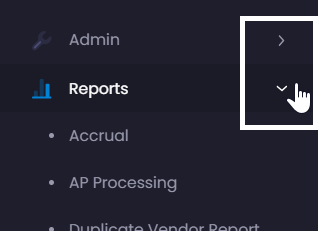
- Sections like Admin or Views contain expandable menus.
- Click on items with white arrows to reveal additional options.