![rpic-yoga_flexible_software-logo-color (1).png]](https://hubsupport.rpic.com/hs-fs/hubfs/rpic-yoga_flexible_software-logo-color%20(1).png?height=40&name=rpic-yoga_flexible_software-logo-color%20(1).png)
Overview
This guide walks through the responsibilities of Buyers in the new Yoga FSM Accounts Payable Automation solution and covers the necessary steps for Buyers to follow within the system in order to address issues the Accounts Payable team may encounter when processing invoices. Some of these issues may include Missing/Invalid PO number, Closed PO Lines, PO Vendor is different than the Invoice Vendor.
Below is a high-level workflow of the invoice process from Invoice Capture in Yoga to posting to Infor, showing the different software used for each step of the invoice cycle. Buyers should review comments from AP on the initial route and then leave comments on the return to AP.
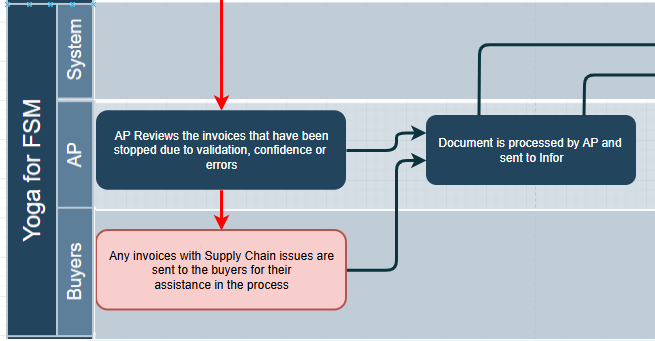
Buyer Responsibilities in Yoga FSM
Buyers are responsible for assisting the Accounts Payable team to resolve invoice issues that the AP team may run into as they process invoices using Yoga FSM. Buyers will solely work out of the Purchasing Invoice Resolution queue in Yoga FSM.
Note: All issues with regard to price discrepancies and UOM discrepancies will still be handled within the Infor system, utilizing the Buyer Messaging systems.
Importantly, no automatic email notifications will be sent about invoices needing Buyer assistance. This is intentional, as a feature of Yoga FSM is that both Buyers and AP Processors will be able to communicate through the Document Notes section of the invoice, which consolidates communication channels and prevents losing items in an email inbox. These communications are then posted with that record to Infor for tracking in the ERP.
It will be an expectation for Buyers to regularly check the Purchasing Invoice Resolution queue in order to ensure invoices with issues are fixed and sent back to AP for processing in a timely manner. If your organization would like a populated list of records in this queue awaiting review on a set schedule, please reach out to your project or SaaS team for implementation.
Step 1: Logging in to Yoga FSM and Setting up your User Preferences
To sign into Yoga FSM, copy and paste the below URL into your browser. Please bookmark this URL to save for later as you will use it to access your Yoga FSM Default View.
|
Tenant |
URL |
|
Test/Production |
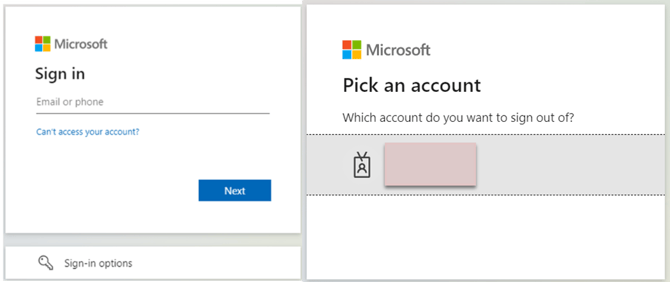
When first attempting to enter Yoga FSM, you may be greeted by the Microsoft SSO login page. You will either be prompted to Sign in or Pick an account. Here, you will enter your standard credentials and sign into the system. After the first sign-on, you should be automatically logged into Yoga FSM from here on out, unless you have multiple Outlook accounts.
Visit the User Preferences Setup Guide Here
- Update your personal information and set up display preferences, default Yoga tenant, email signatures, and more!
Step 2: Navigating to the Purchasing Invoice Resolution Queue and Opening Invoices
Within Yoga FSM, on the dark blue panel on the left-hand side of the page, click on the Purchasing Invoice Resolution queue.
Note: Buyers should only have access to the Purchasing Invoice Resolution View in this dropdown. Some exceptions may exist, depending on your organization's setup.
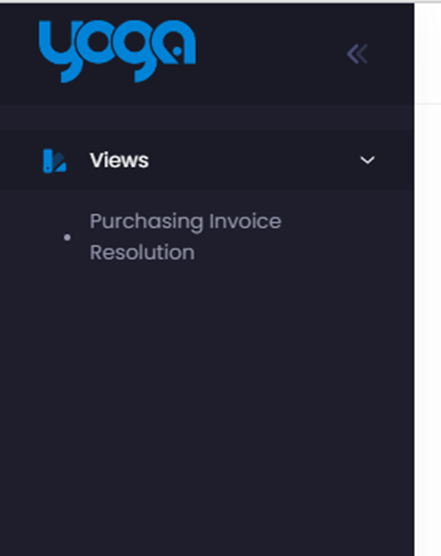
All invoices located in this queue will need Buyer assistance. Logging into Yoga FSM regularly to monitor this queue and resolve issues helps prevent invoices from stacking up and aging. There are various ways to search and filter results within the queue, including Company, Vendor ID, Vendor Name, Invoice Number, PO Number, Buyer, Invoice Date and Invoice Amount.
Setting up your view:
In the bottom, select the Customize View option to view all available column headers. Select or deselect the checkbox next to a field to add it to your column header view. Views will auto-appear on the left hand side, and can be click-and-dragged to a new location on the header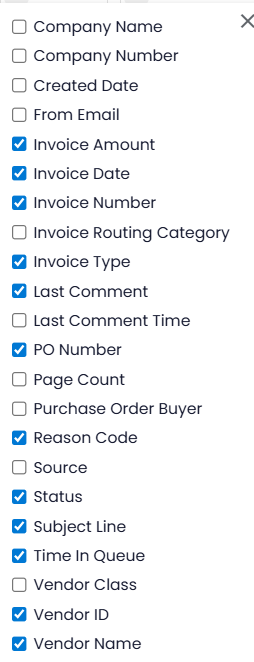
Helpful columns:
Last Comment: Will show the last comment provided from AP before routing to Purchasing Invoice Resolution
Reason Code: Shows the reason the Invoice was routed to the queue
If you see a field on the form that you would like to populate on the view, let us know and we can add for you! Examples would be, AP Processor, Buyer Name, etc
Click and drag header to reorder:

To open an invoice within the queue, simply select the line in the view.
Step 3: Reviewing and Adding Document Notes
After opening an invoice in the Purchasing Invoice Resolution queue, you will see an image of the invoice on the left side of the screen within the PDF Viewer and the eForm with the invoice data on the right side of the screen.
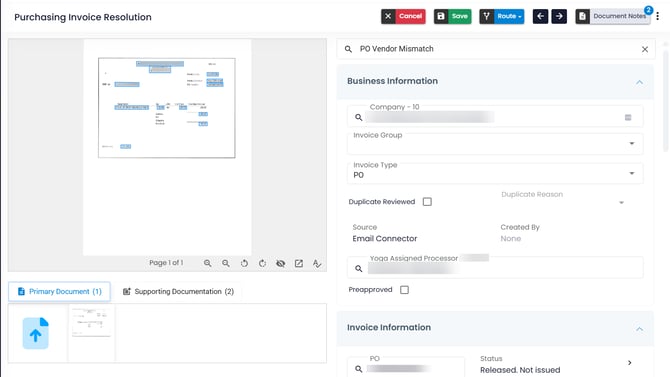
Above the eForm, select Document Notes.

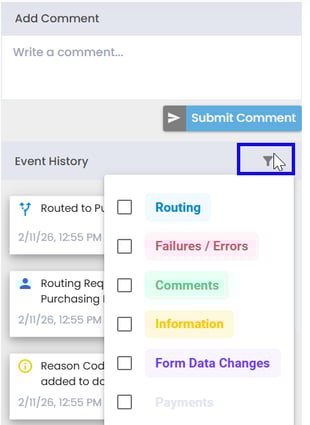 The Document Notes section will appear on the right of the form. This feature is utilized to ensure all communication on a record remains with that record throughout its journey in Yoga FSM and Infor. Please avoid utilizing emails to communicate about these invoices. AP Processors are
required to add a document note and a reason code when routing an invoice to the Purchasing Invoice Resolution queue. Reviewing this area will let you know exactly what is wrong with the invoice. Key reason codes include PO Vendor Mismatch and Invalid or Missing PO.
Filter the types of comments you see by selecting the filter icon and selecting one or multiple comment types for display.

In the ‘Write a comment…’ area of the Document Notes section, insert the requested information that AP Processor needs to finish processing the invoice and select Submit. Buyers may need to utilize Infor to determine the issue AP is reporting. If any changes need to be made in Infor, please inform AP that changes were made so they know to await the next Infor to Yoga FSM data sync. Most clients are setup on hourly data syncs.
Note: Buyers are only allowed to insert comments on invoices and route invoices back to AP Review.
Step 4: Routing the Document back to AP Review
Once a Buyer has added a note on the invoice, they will need to route this invoice back to AP to complete processing the invoice. Next to the Document Notes button above the eForm, select the blue Route drop-down, and then select the AP Review option.

The invoice will then be sent to AP for them to review and either fix the issue and move it forward in the next step of the invoice process, or they can add a new comment and send it back to the Purchasing Invoice Resolution queue if further assistance is required.
Purchasing Invoice Resolution Report
Yoga also provides the supply chain management team with reports based on their designated Buyer queue. This report shows things like how long invoices have sat in the PIR queue for review, how many documents were routed to the PIR queue in the designated timeframe set at the top of the report, if documents are routed more than once to PIR in the designated timeframe set at the top of the report, and user productivity specific to our Buyer group in Yoga.
Step 1 - Navigate to Purchasing Invoice Resolution Report
If your role in Yoga has access to reports, simply navigate to the left-hand blue menu and select the Reports dropdown. Select the Purchasing Invoice Resolution report.
Step 2 - Review Aging Report
The top left report is our Aging report. This report shows the number of days that invoices may be sitting in the Purchasing Invoice Resolution Queue. It shows the average days, the total number of invoices this report is reviewing, and the amount of money in invoices being held up for payment sitting in the queue.
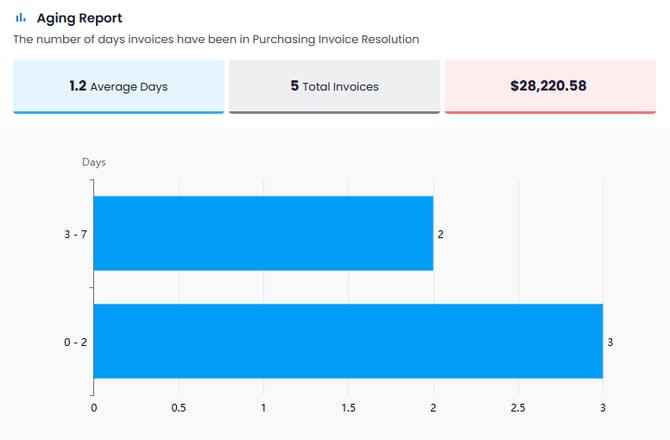
On each of the rows, you can select the blue horizontal bars to drill down further into the data available for those invoices. This information includes the invoice type, workflow in Yoga thus far, routed by user, Vendor, Amount, Invoice Number, etc. In the drilldowns, users can take a download of the data if they prefer to work from a spreadsheet to review or send to their other resources.
Step 3 - Review Efficiency Report
The top right report shows how many documents total have been routed to the Purchasing Invoice Resolution queue and how many times invoices may have been routed to and from.

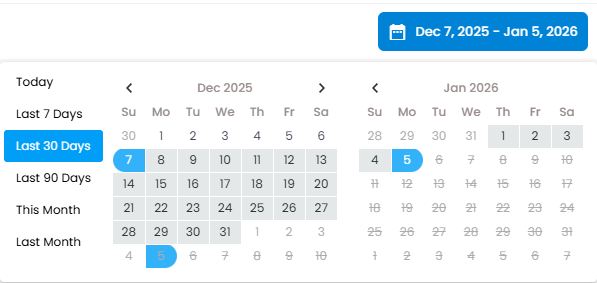
This graph utilizes the calendar at the top right of the reports page, under your avatar, to adjust the numbers. The calendar can be set to any preset range of data or can be manually selected.
Step 4 - Review User Productivity Report
This report specifically reviews users affiliated to the Buyer group in Yoga FSM. This report will show how often each buyer may route an invoice from Purchasing Invoice Resolution back to AP Review every day.
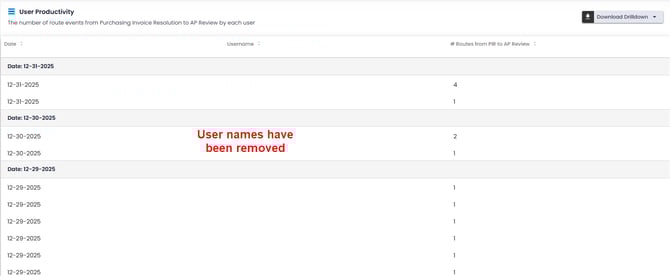
This report also allows for drilldown capability. Simply select on a users row and a drilldown of those invoices routed that day will appear. You can utilize the magnifying glass on the left-hand side of the drilldown to take you directly to that invoice in the system. The drilldown also allows you to be able to download the data presented into a spreadsheet.