![rpic-yoga_flexible_software-logo-color (1).png]](https://hubsupport.rpic.com/hs-fs/hubfs/rpic-yoga_flexible_software-logo-color%20(1).png?height=40&name=rpic-yoga_flexible_software-logo-color%20(1).png)
Overview
This document serves as the overview guide for all reports currently within the Yoga FSM application. The graphs can be sorted by dates and the dashboards on some are highly interactive. The reports may be particularly useful for AP Administrators or AP Managers to better understand the work their associates are completing and to provide supporting data to assist with determining where more resources or effort may be needed. All AP roles have access to view these reports, unless specified during the project.
Report Navigation
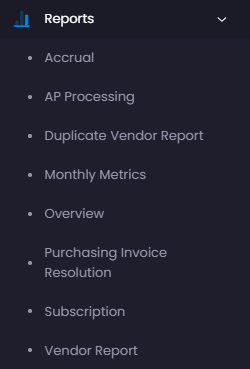
To view reports, navigate to the Reports dropdown on the left-hand dark menu. Yoga FSM environments currently has 8 report pages: Accrual, AP Processing, Duplicate Vendor Report, Monthly Metrics, Overview, Purchasing Invoice Resolution, Subscription, and Vendor Report.
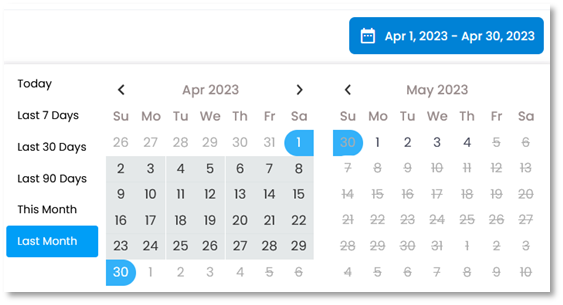
Within each respective reports page, you will see various graphs and tables. You can filter your data results by date by selecting the blue calendar icon bar in the right-hand corner (under your avatar) and selecting a set range or utilizing the default options on the left-hand side.
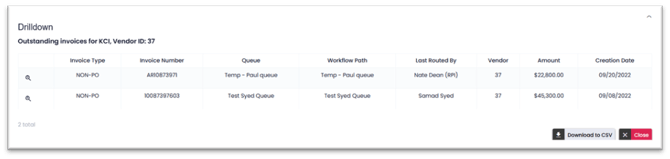
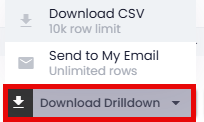
By clicking different points of most graphs, a drill-down box will appear to break down the different documents associated with that data point. These drilldowns can be downloaded as a CSV or have a download link sent to your email for further review or reporting.
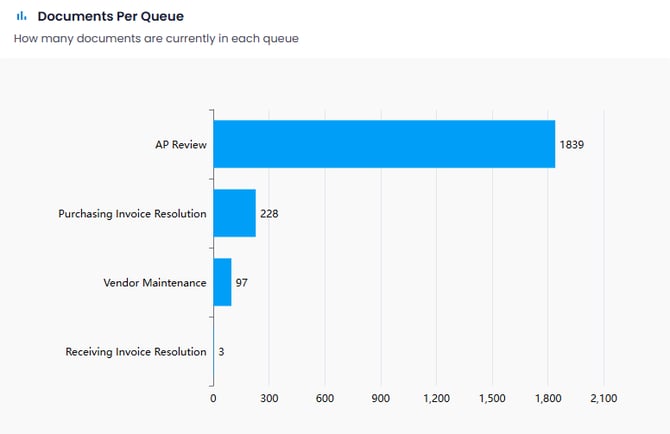
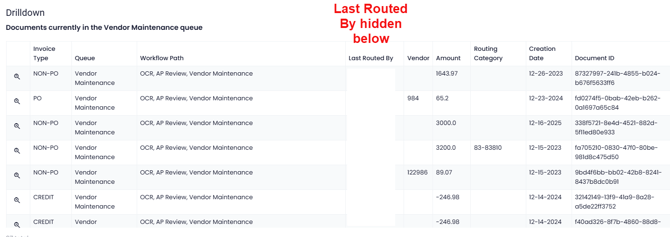
**Note**: These graphs refresh every hour, on the hour, so report numbers might slightly differ compared to what you see in the actual view page, what you’re seeing coming into the system, and how many invoices your team is processing.
Report Walkthrough
Accrual Report Page
This report shows all invoices in the Yoga application except those in the following queues: AP Paid, Awaiting Payment, AP Cancel, OCR Error, and AP Duplicate. The invoices are sorted by vendor and include the queue where users may be able to find the respective invoice(s).
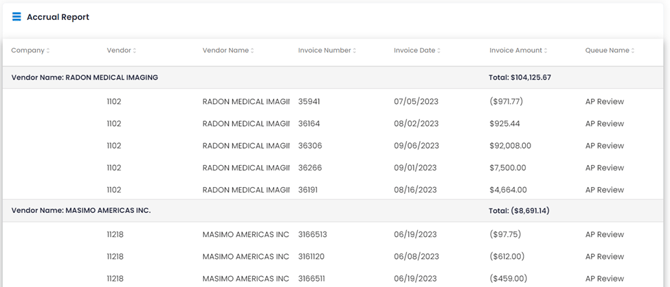
Selecting any invoice in the Accrual Report presents a drilldown table with additional information and a link to the invoice embedded in the magnifying glass on the left side of the table.

AP Processing Report Page
The AP Processing section shows four different reports that provide important information about the invoice processing work the Accounts Payable team is performing in the Yoga Content Application: Routing Requests (By User), Docs Sent to Awaiting Payment (By User), Docs Created (By User), and Duplicate Invoice Statistics.
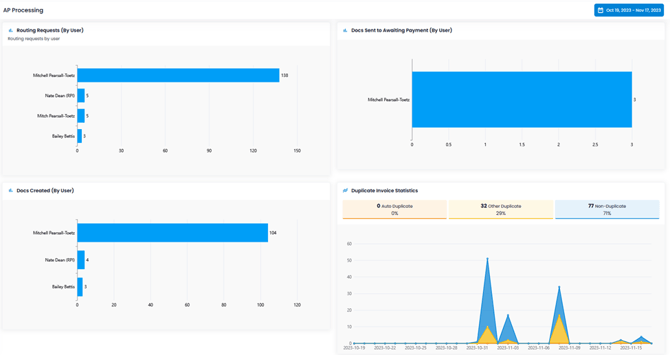
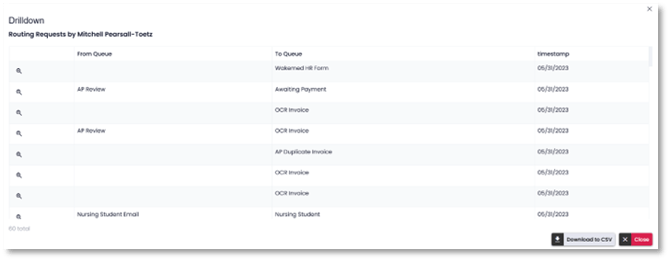
The Routing Requests (By User) report tracks how many routing actions each user has performed during the selected time period. This is a core productivity metric for understanding individual workload and contribution to the AP processing workflow. Clicking their bar on the chart presents a drilldown table that provides each routing request made by the user, when the request was made, and a link to the document being routed.
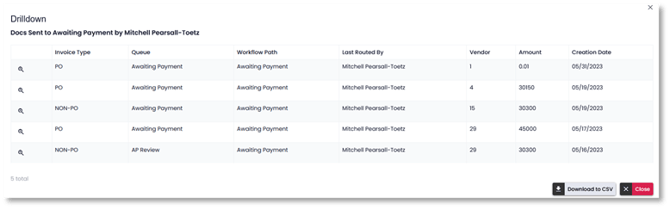
The Docs Sent to Post to Infor (By User) report tracks the critical final step of AP processing - sending invoices to the ERP system for payment. This metric measures completed work rather than activity in progress. Clicking their bar on the chart presents a drilldown table with additional invoice information, the document workflow path, and a link to the document being routed.
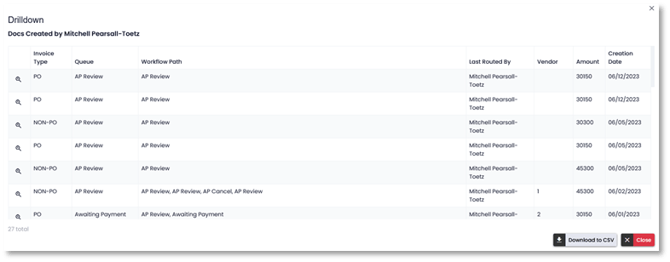
The Docs Created (By User) report tracks how many new AP documents each user has created in the system during the selected time period. This measures the initial capture stage of the AP workflow. Clicking their bar on the chart presents a drilldown table with the creation date, invoice information, and a link to the document that was created. These numbers we want to keep as low as possible in the system to reduce the risk of increasing duplicate invoices in the system. Users should be scanning invoices into the system or forwarding vendor emails to their designated AP Mailbox.
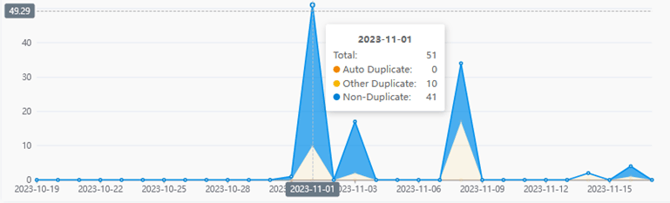
The Duplicate Invoice Statistics report provides visibility into how many invoices are being flagged as duplicates over time, and whether those duplicates were caught automatically by the system or manually by users. This is a critical quality and control metric for AP operations. Hovering over any data point on the graph shows the breakdown of non-duplicates, auto duplicates, and manually routed duplicates for any specific day. This data point can be clicked to provide a drilldown for all the documents with the associated duplicate type for that day.
Duplicate Vendor Report Page
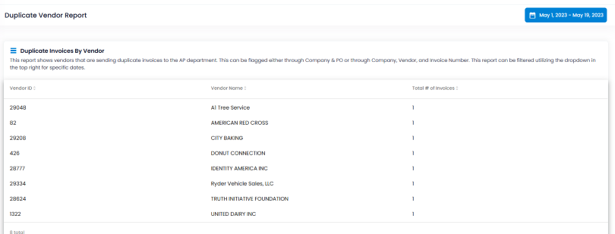
The Duplicate Invoices By Vendor report identifies and tracks invoices that have been flagged as potential duplicates in the AP automation system. This is a critical control report for preventing duplicate payments to vendors. When the system identifies a potential duplicate, it routes the invoice to the 'AP Duplicate Invoice' queue for review. This report provides a vendor-level summary showing which vendors have the most duplicate invoice issues, helping teams prevent duplicate payments, identify problematic vendors, improve vendor communication, track duplicate trends, and prioritize duplicate review work.
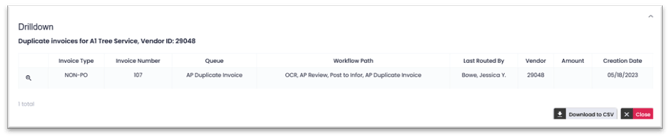
Selecting any vendor in the report provides a drilldown table of all the duplicate invoices associated with the vendor. A link to each invoice is embedded in the magnifying glass on the left side of the table.
Monthly Metrics Report Page
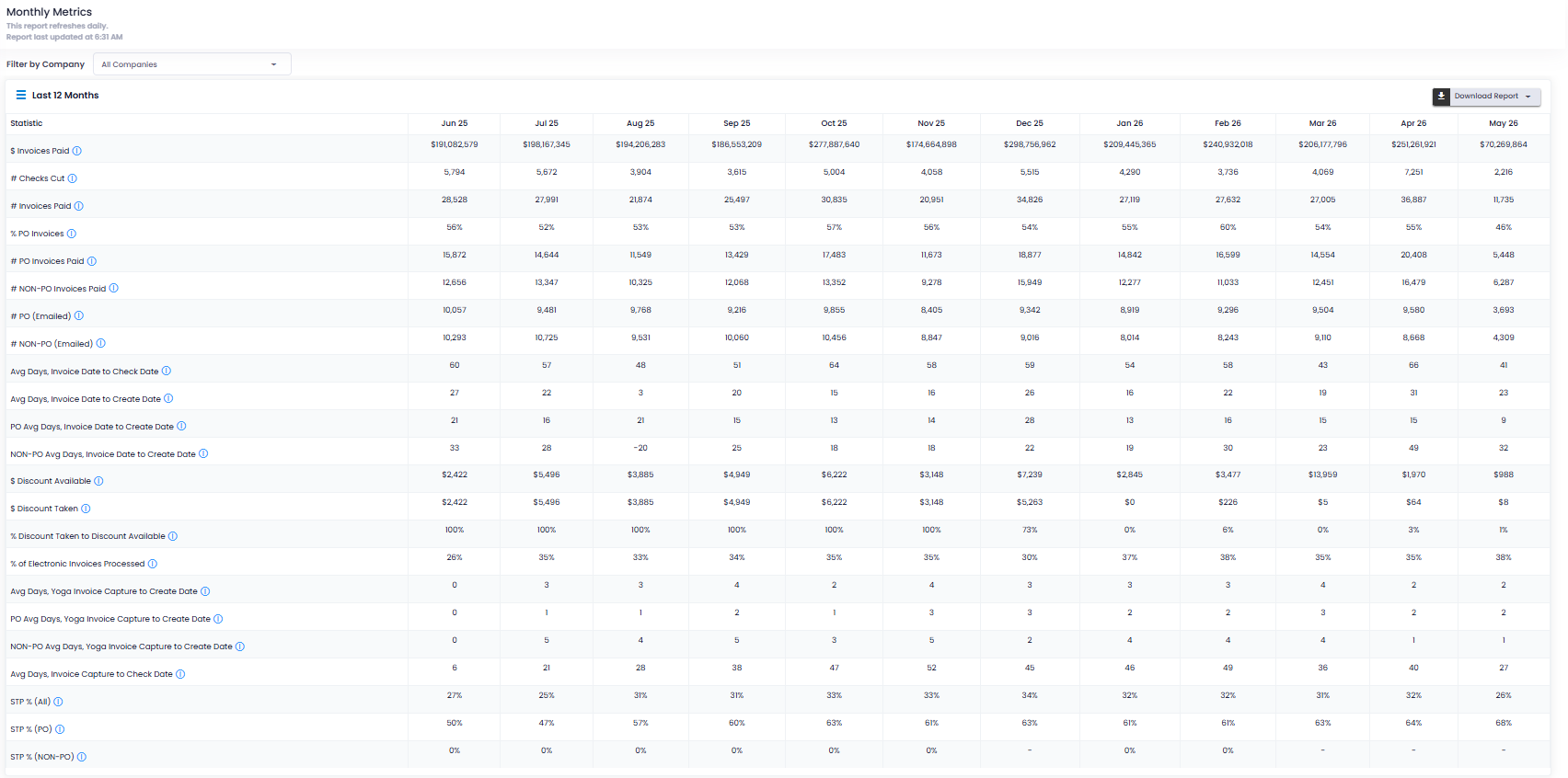
The Monthly Metrics report is the executive dashboard for AP automation performance. It provides a comprehensive, month-over-month view of every critical aspect of the accounts payable operation, from financial metrics to processing efficiency to automation rates. Key areas indicated on this report include financial impacts, volume trends, processing speeds, automation successes, and operational efficiencies.
The labels on each row of the report can be adjusted to have a more descriptive description per tenant. Each row also has the ability to be hidden per tenant if a value isn't applicable for your organization.
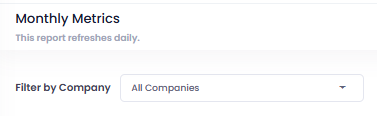
This report can be seen for all or selected companies. At the top of the report, utilize the Filter by Company to select specific companies to display in the data. You can select as many as needed or keep to the default All Companies. To remove selection, simply select Clear selection.
This report is also downloadable. In the top right of the report, select Download Report. From here, you can simply download to Excel or email yourself a link to the download
For further explanation on each rows values, please reach out to your project or Yoga SaaS team.
Overview Report Page
The Overview Report Page contains four reports: Document Ingestion Rate, Processing Differential, Documents per Queue, and User Productivity.
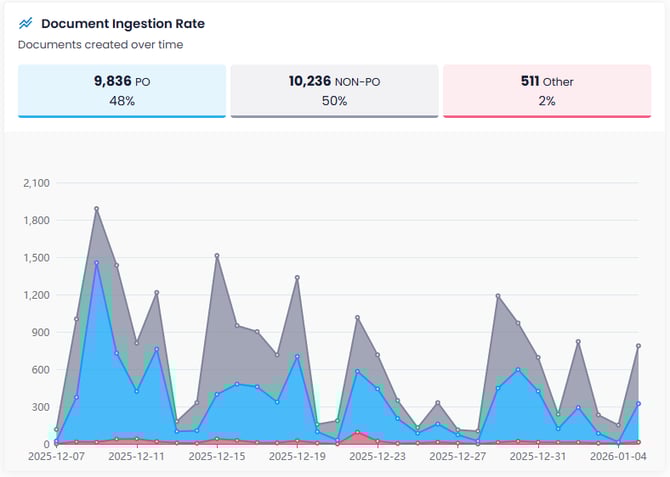
The Document Ingestion Rate report provides visibility into how documents are flowing into the AP automation system. This metric is critical for understanding workload patterns and capacity planning. In AP processing, documents fall into three main categories of PO, Non-PO, and other (statements, credits, etc). Drilling down on any data point presents a table with all the ingested documents for that given day. This includes scanning and emailed documents.
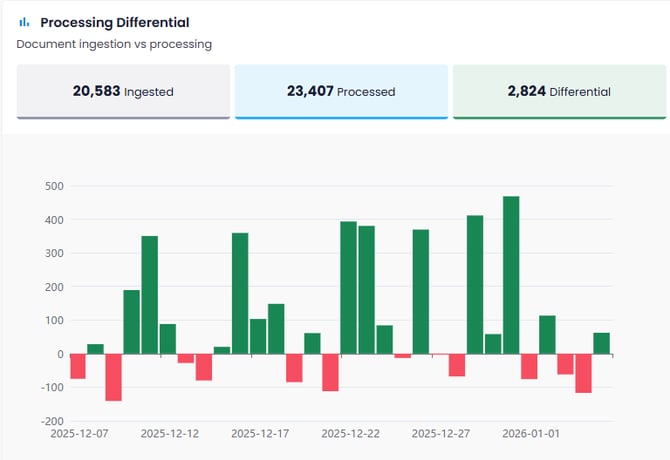
The Processing Differential report shows the relationship between documents coming into the system (ingested) and documents being completed (processed). This is a critical health metric for AP operations. Green indicates we are processing out more than what is coming in. Red means we aren't keeping up with processing what comes in for the day.
The Documents Per Queue report provides a real-time snapshot of where work is sitting in your AP automation workflow. This is one of the most critical operational metrics for managing daily workload and identifying bottlenecks. In AP processing, documents flow through various queues as they move from initial capture to final payment approval. Each queue represents a specific stage or task in the workflow - such as data validation, exception handling, approval routing, or manager review.

The User Productivity report provides visibility into individual user activity and workload distribution across the AP team. This metric is essential for performance management, capacity planning, and identifying training needs. Clicking on any row will create a drilldown showing where invoices were being routed to, and how many were successfully routed to Awaiting Payment.
Purchasing Invoice Resolution
The Purchasing Invoice Resolution report provides the supply chain management team with reports based on their designated Buyer queue. This page is composed of three reports: Aging Report, Efficiency Report, and User Productivity.
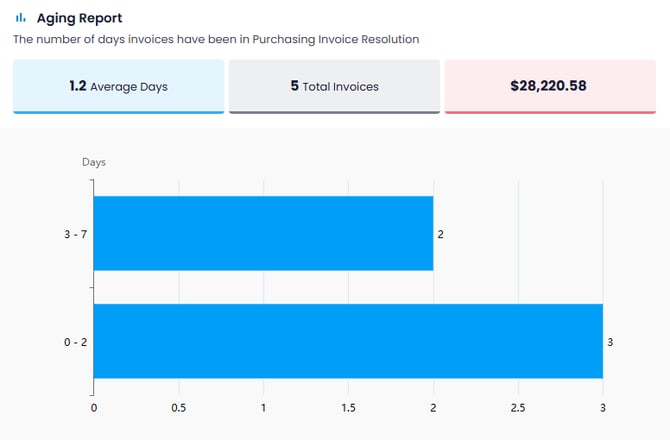
The Aging Report reviews how long invoices may be sitting in the Purchasing Invoice Resolution queue to be resolved or the issue identified. It provides an average number of days that invoices usually sit in the queue until routed back to AP, the total invoices currently in the queue and the total dollar amount on the invoices being held. Drilling into this report gives the user a further breakdown of the invoices indicated in the bar graph.
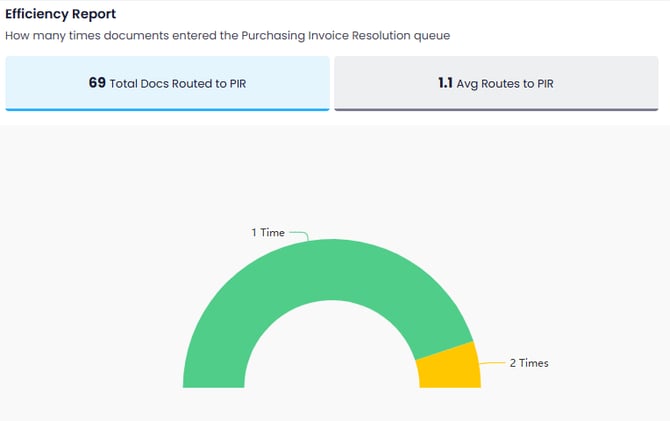
The Efficiency Report shows the total number of invoices routed to the Purchasing Invoice Resolution queue within the selected range at the top of the page. It also states the average amount of times an invoice has been routed to Purchasing Invoice Resolution. Ideally, we only want invoices routed here once. If we see the average far exceed 1, we may need to work with AP and the Buyer to be more descriptive in their comments back and forth to each other to get items resolved quickly and efficiently.
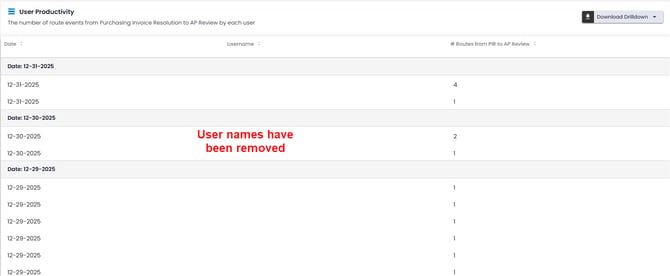
The User Productivity on this report specifically focuses on the Buyers in Yoga. It shows the amount of times a Buyer is routed documents from Purchasing Invoice Resolution back to the AP team every day. Drilling down per row on this report gives you a further breakdown of the invoices routed on that day by that user
Subscription
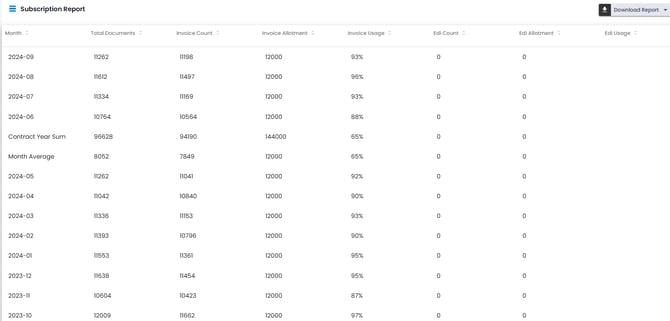
This report breaks down your overall SaaS usage in the system per contract year and per month. The items called out in this report include Total Documents, Invoice Count, Invoice Allotment, Invoice Usage %, EDI count, EDI Allotment, EDI Usage %. This report should be reviewed on your Quarterly Stakeholder calls and Monthly Status calls if requested. This report indicates if you are projected to go over your allocated document volume in Yoga and may want to review ways to possibly cut duplicates, limit manual captures from your team, or increase your allotted volume.
Vendor Report Page
This report breaks down the invoices in the system by the Vendor ID. It includes invoices seen as being in a processing state in Yoga, this includes. The report then sums up all invoice amounts for the identified vendors’ invoices in the remaining queues. If vendors have a total of a credit, that amount will appear within a parenthesis in this report.
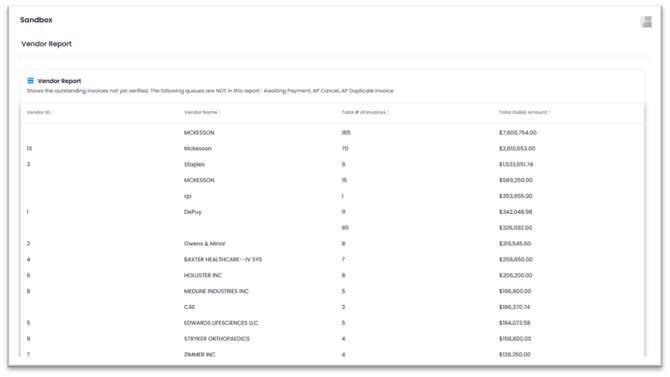
Selecting any Vendor in the report provides a drilldown table of their current outstanding invoices with additional information. A link to each invoice is embedded in the magnifying glass on the left side of the table.