![rpic-yoga_flexible_software-logo-color (1).png]](https://hubsupport.rpic.com/hs-fs/hubfs/rpic-yoga_flexible_software-logo-color%20(1).png?height=40&name=rpic-yoga_flexible_software-logo-color%20(1).png)
Vendor Automation
Vendor statements are one of the last places AP teams still reconcile by hand — opening a PDF or spreadsheet from the vendor, then hunting through AP one invoice number at a time to work out what's already paid, what's in process, and what was never received at all.
Yoga's Statement Automation tool does that research before anyone opens the statement. When a vendor statement arrives, Yoga identifies the vendor, reads every activity line, and matches each line against your AP data — open invoices, paid invoices, EDI invoices, credit memos, and invoices that live only in your ERP. By the time a reviewer opens the record, matched lines are already linked to their source documents, each one carries its current payment (if available) and ERP status, and only the genuine exceptions are left to work. From there, the statement is a single workspace. The team can accrue what's missing, ignore what doesn't apply, research anything ambiguous against your full AP history, and email the vendor a formatted status table without leaving the record. Matching then keeps running on a schedule behind you: a line that couldn't match on Tuesday because the invoice hadn't been keyed matches on its own by Thursday, and payment and receipt details on already-matched lines stay current without anyone reopening the statement. Below is a user walkthrough of the full Yoga Statement Automation tool.
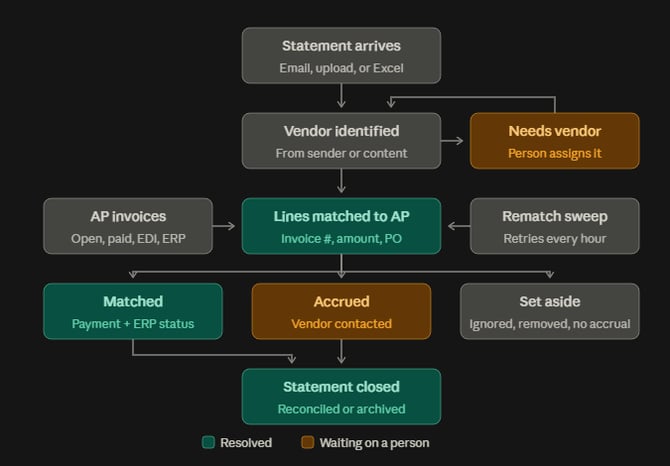
Table of Contents
Downloading from Views and Record
Capturing Statements into Yoga
As apart of the Statement Automation tool, your Yoga system will be enabled for document classification. The classification can be setup on your inbox, capture page, or other points of ingestion. As documents come into the system, the tool will review each document prior to extraction to determine is this an invoice, statement or other piece of documentation? From there, these documents will go through their individual OCR extraction models and validation checks. For invoices, we run your exact OCR script your are used to today to look for things like PO, Invoice Number, Invoice Date, Vendor, Invoice Amount, Company, etc. Your statements will extract or parse each line on the document for each invoice record to populate on the statement form. Other documents will be sent to a separate queue to be reviewed and reviewed to keep or route to a different area in the system.
Manual Upload / capture page. Upload a statement PDF directly from a capture page. Ensure the "Classify As" is set to auto to run the classification, or go ahead and pre-classify as Statement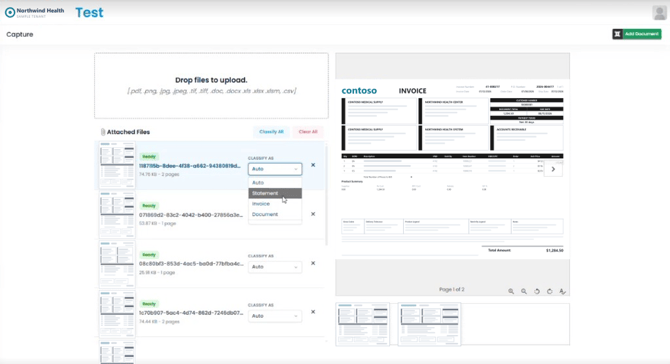
Email. Ensure your vendors are emailing statements to your Yoga email connector. Yoga classifies the inbound document, recognizes it as a statement rather than an invoice, and routes it to the Statements Automation queue. The originating email details are kept on the record so you can always see who sent it and when.
Excel or CSV (opt-in). If your vendors send statements as spreadsheets, Yoga can bulk-capture them through a dedicated Data Capture page — the same pattern as invoice spreadsheet uploads today. Yoga creates the statement records, maps header and activity lines, and generates a viewable statement image so your team still works the data visually.
Technical overview
- Classification: Inbound documents pass through Content Understanding classification, which distinguishes statements from invoices and routes accordingly. Capture pages also allow classification (auto, invoice, statement, other).
- Extraction: The statement intake process reads the vendor header (name, number, address, Federal ID), statement metadata (date, period, balances, account number and name, currency, contact details), and every activity line.
- Vendor identification: Yoga resolves the vendor from the statement content and the sending email address against your vendor master. If it cannot identify the vendor with confidence, the statement lands in Needs Vendor for a person to assign — matching cannot run until the vendor is known.
- Auto-matching runs immediately at intake, before anyone opens the record.
Statement Views
Give the team a single prioritized worklist of every statement in flight, plus an at-a-glance read on total reconciliation exposure.
| View | Function/Definition |
| Statement Automation - Archive | Once statements have been fully reviewed or reconciled, users can route statements to this queue for storage |
| Statement Automation - Cancelled | Statements that come into Yoga that don't need to be worked or reconciled |
| Statement Automation - Duplicate | On ingestion, Yoga will try to determine if an exact statement has already come into the system. It does this by the invoice lines and key header data matching |
| Statement Automation - Outstanding | The main working view. This is where users will go to review the statements, accrue, research invoices where needed, etc |
Summary cards sit in a single strip of eight across the top of the view. The first five are live counts of statements: Needs Review, Reconciled, Needs Vendor, Pending Vendor, and Disputed. The first four are simply how many statements currently hold each of the statuses described in the Statement Statuses section; Disputed counts statements carrying the separate disputed flag rather than a fifth status. 
The remaining three cards are reconciliation metrics rolled up across the statements in the view. Matched Lines and Matched Amount are each shown as a fraction — the matched figure over the total — so the two totals are denominators inside those cards rather than cards of their own:
|
Card |
What it shows |
|
Matched Lines |
Lines matched to an AP document, in Yoga or the client's ERP, over total lines across the statements in view (for example, 7 / 9) |
|
Matched Amount |
Value of matched lines, over total statement value (for example, $61,430 / $74,267) |
|
Accrual |
Total value of lines currently flagged for accrual |
Ignored lines are excluded from every count and total, so dismissing a line that doesn’t apply genuinely reduces your exposure numbers rather than just hiding a row.
At the top of the views, users have the ability to pick a month for their statement filtering. Users can also track statements by ones with no date scanned, Past Due, or ones flagged with EDI invoices.

Statement Statuses
Every statement carries exactly one status, calculated automatically from its lines. Yoga applies the first rule that fits — there is no fall-through: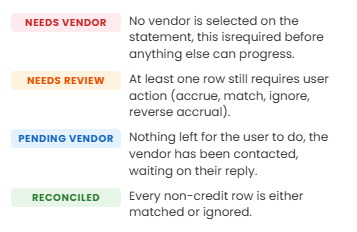
Two useful consequences of the way this is calculated:
- Credit lines never create work. A line with a negative amount is treated as a credit and is skipped by the status rules. A statement made up entirely of credits reconciles on its own.
- A statement with a vendor and no activity lines is Reconciled, not stuck in review.
Disputed is a separate flag, not a status. Marking a statement disputed does not change its Needs Review / Pending Vendor / Reconciled status — it’s an annotation you can filter on in the view.
Back to TopWorking a Statement
-
To open a statement, simply click on a line in the Statement Automation - Outstanding view.
- Once inside the view you are presented with a Header at the top with the key statement information and all the separate invoice lines
- To view the original document, select the Show Document under the header
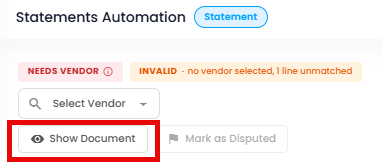
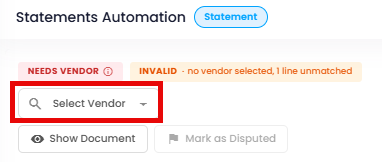
- If the vendor needs updated, select the lookup in the top left corner
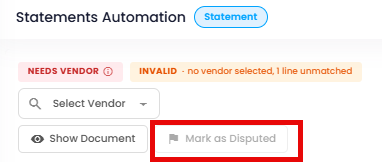
- If the statement needs to be disputed, select Mark as Disputed
- Each line on the invoice should be extracted. If any lines were missed due to confidence, simply select Add Line at the bottom of the form.
- Some column values are editable for key invoice information like Invoice Reference (number), Invoice Date, Due Date (can be calculated by terms), PO Number, and Invoice Amount.
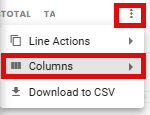
- Columns can be reordered by simply and dragging the label of that column to a different position. To add or remove columns, navigate to the three vertical dots > select columns > a list is displayed. Ones already present on the view are selected. To remove, simply unselect the value.
- Each statement line has a status based on the line matching or work users have done on that line.
Status All Matched Pending Reverse Accrual Ignored Accrued Accrual needed Credit Unsaved Vendor contacted - To manually resolve lines, navigate to the right of the line, you are presented with various actions. As you perform these actions, the Status column on the line will update accordingly
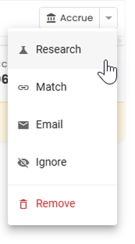
- To manually match a line to a record in Yoga, select Research. You can match to an invoice based on the Invoice Number, Amount, PO, or payment information. The popup also presents similar invoices with different information for the same vendor
- Selecting match will just state the record has a match without performing a true match to the direct document in the system
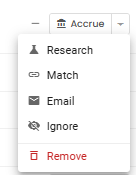
- Select Email to email the vendor an update with all that specific line detail like status and payment information
- Select ignore to keep the line visible but be removed from the statement and view metrics
- Remove the line if you don't want it to appear in the table anymore
- Select Accrue to accrue that line in the financials metric without matching until the invoice comes in
Brought over from the matched AP document (read-only): AP Queue · AP Amount · Payment Status · Check Number · Payment Date · Payment Amount · PO Code · Received Status · Received Date · Receipt detail · Last Comment · Tax Amount · Subtotal · Company Number · Company Name · ERP Status · Reject Reason · EDI · Cancel Date · Cancel Reason · Unique ERP Identifier
Matched lines show a green check that links straight to the source AP document in Yoga, so you can open the invoice Yoga matched and confirm it yourself in one click.
Automatic Matching
You generally don’t run matching — it runs for you, twice:
- At intake, as soon as the vendor is identified. This is why a statement is often already largely reconciled the first time anyone opens it in the system.
- On a recurring schedule afterwards, so a line that couldn’t match on Tuesday (because the invoice hadn’t been keyed yet) matches on its own by Thursday. The same job refreshes payment and receipt details on already-matched lines, so a statement you accrued last week reflects this week’s payment activity without being reopened.
Matching requires a vendor on the statement, and only considers lines that aren’t already matched, aren’t credits, and have both an invoice reference and a readable amount. The invoice number cleanup we do on your invoices, will also take place on the statements depending on your requested build (removing special character, keep certain ones, etc)
Yoga searches your open and completed AP documents — including EDI invoices and invoices already in AP Paid — across every invoice document type configured for your organization.
A candidate must satisfy all of these to be matched:
|
Criterion |
Rule |
|
Vendor |
Exact match on vendor number |
|
Invoice number |
Exact match, not case sensitive |
|
Amount |
Matches to within half a cent |
|
PO number |
If both sides have a PO, they must agree. If neither has one, that’s fine. If the statement line has a PO and the AP document doesn’t (or vice versa), the match is rejected. |
When more than one AP document satisfies every criterion, Yoga takes the most recently updated one. On a successful match, the line is linked to that document and the AP queue and the AP amount is stamped onto the row, followed by the payment, receipt and other ERP information available.
If a previously matched line can no longer be synced — the AP document was deleted, is mid-routing, or was changed by someone else at the same moment — Yoga surfaces that as a match failure on the row and the statement returns to Needs Review rather than silently keeping stale data.
Back to Top
Line Actions
The line action give a reviewer a small, unambiguous set of moves for any line, and lets the statement status follow automatically. Every line carries its own action control at the end of the row.
|
Action |
What it does |
Effect on status |
|
Match |
Links the line to an AP document, stamps AP queue and amount, and pulls in payment and receipt detail. Yoga also records on the AP document that it appears on this statement. |
Removes the line from outstanding work |
|
Unmatch |
Breaks the link, clears the derived payment and receipt columns, and removes the reference from the AP document |
Returns the line to outstanding work |
|
Accrue |
Books the line as an accrual, for statement activity you believe is real but can’t yet find in AP |
On its own, still Needs Review |
|
Research |
Opens the research panel for this line and searches your AP data for candidate documents to perform the match |
None — it is a lookup, and nothing changes until you act on a result |
|
|
Emails the vendor about this line on its own, rather than about the whole statement |
None on its own — the Vendor Contacted flag is what moves the status |
|
Ignore |
Dismisses the line from reconciliation. The line stays on the statement, flagged as ignored. |
Excluded from all counts, totals, and work states |
|
Unignore |
Returns an ignored line to reconciliation |
The line counts again, and becomes work if it is unmatched |
|
Remove |
Deletes the line from the statement |
The line no longer exists, so it cannot contribute to any count, total, or status |
Ignore and Remove are not the same thing, and the difference has consequences.
-
Ignore flags the line as ignored but leaves it on the statement: you can still see it in the grid, it still comes out in the CSV export, and it still appears on the line-level Statement Report marked as ignored. What it loses is any influence — it drops out of the matched-lines, matched-amount, and accrual figures, and it can never put the statement into Needs Review.
-
Remove deletes the line from the statement’s line data outright. Every total is recalculated without it, it is gone from the grid and from the CSV export, and the recurring match sweep will never bring it back, because matching only ever works on lines that are on the statement. If the line you remove was matched to an AP document, Yoga also removes this statement’s reference from that document. What survives is the statement’s change history, which records the removal along with the values the line held at the time — so there is still an audit record that the line was once on the statement, even though the statement no longer carries it. Remove is shown in red in the menu for that reason.
Other Line Actions
Add Line Details to other Lines
- Navigate to the three vertical dots below the statement header information
- Select the three dots
- Select Line Actions
- If no line is selected, you are defaulted to select Add Line Details to All Lines. This copies from the first line on the statement. This may be good for PO vendors where the PO isn't on the statement but you know they are all tied to one PO number
- Select a line on the statement and navigate back to the three vertical dots > Line actions
- A new option is available to Add Line Details to Selected Lines. This will populate from the information on the first statement line
Add Missing Lines
Sometime Yoga extraction isn't perfect or doesn't match our confidence threshold to populate data and we have to manually add things. These quick steps allow you to do that!
- Click into a statement
- Navigate below the invoice lines populated from OCR
- Select + Add Line
Back to Top
Research Tool
Yoga's research functionality on the invoice lines is a great way for reviewers to find invoices in the system that maybe the invoice number is slightly off on one of the documents or is misclassified to a different vendor at the time it came into the system.
- Click into a statement
- Find a line that is not match and is in a status Accrual needed
- On the far right of the line, select the dropdown by Accrue
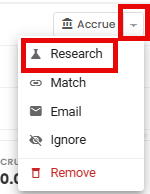
- Select Research. The Invoice Research pane loads
- The system will run a search on key fields based on the data on your invoice line such as Invoice Number, Invoice amount, Purchase Order, and Payment Information
Search
What it looks for
Invoice number
Exact matches, plus partial matches in either direction — the statement reference contained in your invoice number, or your invoice number contained in the statement reference — where the two differ in length by no more than two characters. This is what catches prefixes, suffixes, and check-digit differences.
Amount
AP documents for the same amount, optionally narrowed to within 30 days either side of the statement line’s invoice date, most recent first
PO number
AP documents on the same PO
Payment
Payment activity for the amount, matched to within a penny, optionally narrowed to the same 30-day window
- The other vendor results run on a second bucket of invoices that are tied to a different vendor ID using fuzzy vendor name similarities. This is how you can find your record under a duplicate or another vendor in nonconsolidated vendor masters.
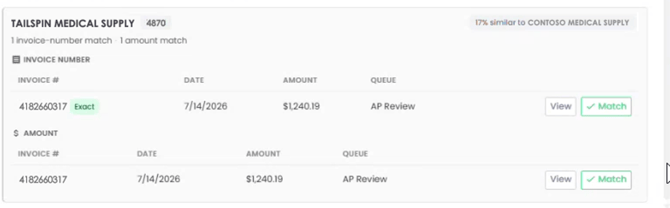
- Simply select match once you've found your invoice
Download from Views and within Statements
From Yoga's views, you can download view information and data in a couple ways. We will walkthrough those below.
- Navigate to a Yoga Statement Automation View
- On default the view is filtered by the last month or filter in place on the view. In the bottom right-hand corner, it gives you a total of all documents currently in the view
- Select Download to CSV
- The CSV should be a replica of the data that was in your Yoga view for you to manipulate how you might neeed
- Update the filter in your view to look for a specific vendors statements. Notice the total document count in the bottom right-hand corner has changed
- Select Send to my email. This will send you a link to the report to download separately
From inside a statement, you can also download the presented data into various reports. Those steps are outlined below
- Click into a statement
- Navigate to the three vertical dots on the right-hand side of the form
- Select Download to CSV. A CSV is generated to your downloads folder of all the invoice line data for this statement
Custom Columns
Within the Yoga statement, users may have various ways of how they like to see the invoice line detail printed out. Just like the Yoga views, within Statement Automation form, you have the ability to add/remove columns and put them into a custom order just for you as a user for that view. None of these updates are globalized, you will only see per user, per view, per tenant
- Click into a statement
- Navigate to the three vertical dots on the right-hand side of the form
- Select Columns to display the list of available column headers. The ones already visible will be selected. Additional options are shown as unselected.
- To reorder the columns, simply drag and drop the column header into the position you'd like it
Emailing the Vendor
When lines can’t be resolved internally, Yoga provides a way toemail the vendor from the statement directly. Yoga builds the message for you: your vendor’s header details, a formatted table of the lines in question with the status of each, and totals. Review it in the preview, adjust the wording, add recipients, and send. Use it for a whole statement, or for a single line when only one item is in question — in that case the totals block is omitted so the email stays focused. After sending, mark the lines as Vendor Contacted so the statement moves to Pending Vendor and drops off today’s worklist.
- Click into a statement
- Navigate to a statement line action and select Email
- A prepopulated template appears. It includes the invoice line detail for the vendor to review and request a new copy be sent. Attached is a copy of the original statement for their review as well
You can also send a full statement report to the vendor to include matched invoices and their statuses
- Click into a statement
- At the bottom of the statement form, select Email Vendor
- A prepopulated template appears. It includes a table of all invoices currently on the statement with their current statuses for the vendor to review. Attached is a copy of the original statement as well.
- To allow the sending of payment and receipt information, enable that flag at the bottom of the email to add those columns to the table. Any invoices flagged as Needs Accrual will flag as a request for the vendor to send another copy
Accruals & Export
More coming soon in our v2 release!
Back to Top
Disputes & Notes
Disputed is a flag you set on a statement to mark it as under dispute with the vendor. It’s deliberately independent of the workflow status — a disputed statement can still be Needs Review or Pending Vendor — and it’s filterable in the view and counted on the summary cards, so disputes stay visible without distorting your reconciliation queue.
Notes use Yoga’s standard document notes, visible as a column in the statement list. The most recent comment from the matched AP document is also surfaced as a read-only Last Comment column on the line, so a processor working the statement can see what the AP team already said about that invoice.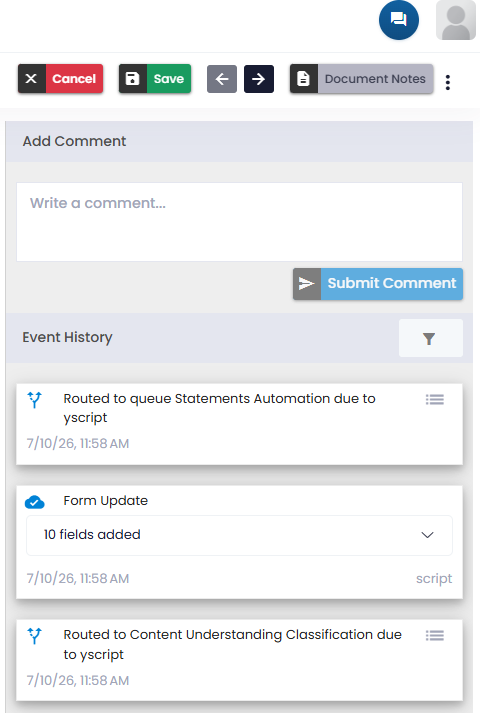
To filter what you see in the document notes area, simply select the filter icon below the comment area. From here, you can select to filter on just comments, routes, form changes, and information (reason codes).
Back to Top
Reporting
Day-to-day reporting is built into the Statements Automation view — the summary cards at the top of the view give you live counts and dollar totals by status, and every statement’s line grid exports to CSV in full.
More coming soon in our v2 release!
Back to TopFAQ
Is Statement Matching included in my current Yoga license?
No. It’s a separate solution and an addition to your platform fee. Contact your Client Success Manager or YogaSupport@RPIC.com for pricing.
Can we try it before we buy it?
Yes. You can process up to 5 statements per calendar month in your TEST environment, with your own statements and your own AP data. No rollout request is needed — Yoga Super Users can start from the Statement Matching capture page. The limit resets each calendar month.
When you say “matching,” do you mean matching to the statement or matching within our ERP?
Matching to the statement. Yoga matches each statement line against your AP documents in Yoga. It does not perform invoice-to-PO or receipt matching in your ERP, and it isn’t a three-way match. Receipt and payment details are displayed on matched lines for context.
Why is a statement stuck in Needs Vendor?
Yoga couldn’t identify the vendor from the statement or the sending email address with enough confidence. Assign the vendor on the record and matching will run.
Why didn’t a line match when I can clearly see the invoice in AP?
The most common causes are an invoice number that isn’t an exact match (a vendor prefix or suffix), an amount that differs by more than half a cent, or a PO number on one side but not the other — Yoga will not match a statement line that carries a PO to an AP document that doesn’t. Use the research tool; its partial invoice-number search and other-vendor search are built for exactly these cases.
Why did a reconciled statement go back to Needs Review?
Almost always because a line you had accrued has since matched to a real AP document. Yoga reopens the statement so the accrual gets reversed rather than leaving a duplicate accrual on the books. It can also happen if a matched AP document was deleted or changed and the link could no longer be synced.
Do I have to re-run matching?
No. Matching runs at intake and then on a recurring schedule, so lines for invoices that hadn’t been keyed yet match on their own. The same sweep refreshes payment and receipt details on lines that are already matched.
Will paid invoices match?
Yes. Matching includes invoices already in AP Paid, as well as EDI invoices.
What happens to credits on a statement?
Credit lines (negative amounts) are recognized as credits and never create work. A statement consisting entirely of credits reconciles on its own.
What’s the difference between Ignore and Unmatch?
Ignore dismisses a line from reconciliation entirely — it drops out of every count and total. Unmatch only breaks the link to an AP document and puts the line back into outstanding work.
Do we see receipt information?
Received status, received date, and receipt detail are available for Infor FSM organizations on matched lines with a PO. Organizations on other ERPs see payment columns but not receipt columns.
What does the vendor actually receive when I email from a statement?
A branded email with your message, a formatted table of the lines in question (invoice number, dates, PO, amount, and Received / Not received / Credit status), totals, and an Excel copy of the same table attached. You can also attach the statement PDF. Replies come back to you.
Does Yoga process the vendor’s reply?
Not today. The reply comes to your mailbox and you resolve the lines on the statement. Inbound reply handling is on the roadmap.
Our vendors send statements as spreadsheets, not PDFs. Can Yoga handle that?
Yes, as an opt-in. Yoga can bulk-capture statements from Excel or CSV and generate a viewable statement image so your team still works the data visually. It requires the Statement Matching solution first and is configured per organization. Email YogaSupport@RPIC.com.
Questions? Email YogaSupport@rpic.com and we’ll connect you with the right person on our team.